Tell Indivia what to add fills the app for you from a sentence. Open it from the + button, the Net worth page, the setup checklist, or the top of the Help page.
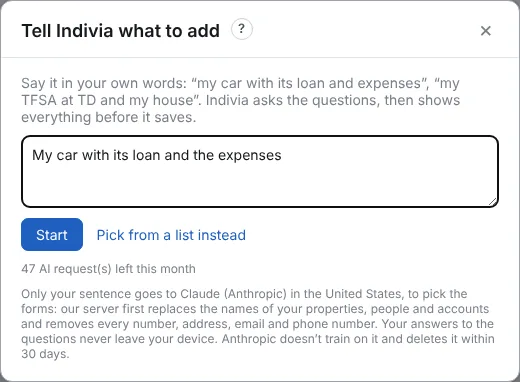
- Write what you want to add in your own words, for example “my car with its loan and the expenses”, “my RRSP at Wealthsimple” or “my duplex with its mortgage”, then press Start.
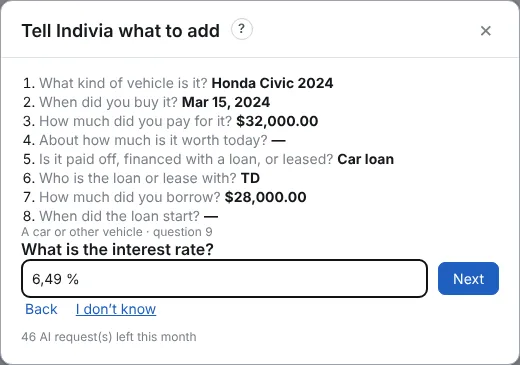
- Indivia asks the questions one at a time: answer in words (“March 2024”, “32k”, “6,49 %”), press a button, or I don’t know when a question is optional. Back goes to the previous question. An answer it can’t read is asked again; it never guesses.
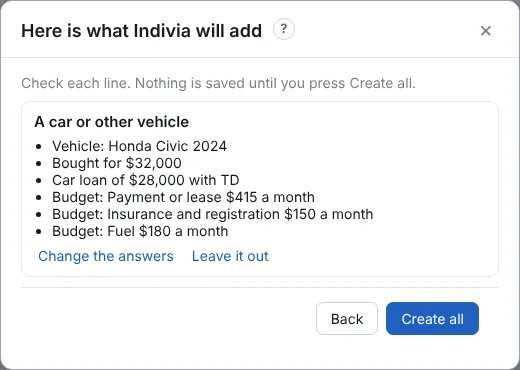
- At the end, Here is what Indivia will add lists every line. Change the answers or Leave it out for each item, then Create all.
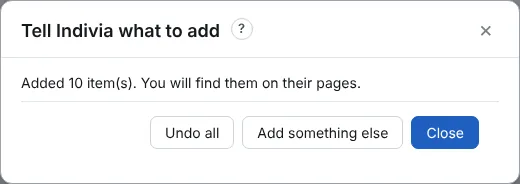
- Undo all removes everything it just added. A budget line already planned for this month is never changed; the window names it.
What it can add: a car or other vehicle (with its loan or lease and costs), your home or a rental building (with the mortgage), a bank account, a credit card, a line of credit, an investment account (RRSP, TFSA, FHSA, RESP, RDSP, LIRA, RRIF, non-registered, crypto), a stock or fund, a pension plan, life insurance, money lent, valuables, shares of a private company, anything else you own, a student or personal loan, money or tax you owe, a regular bill, and a monthly budget amount.
Only your sentence goes to the AI, without the names and without any number, to choose the forms; your answers stay on your device. It counts as one question of your monthly limit (Ask how to enter something). Pick from a list instead does the same without AI and sends nothing; it is the only choice when your plan doesn’t include AI (Plans and payment).
Names in bold are the pages, tabs and buttons as the app shows them.
Step-by-step tutorials
Pick a way. The screens are shown with sample data.
Add a car, its loan and its costs in one go
Instead of opening each form, tell Indivia what you want to add. Here, a car bought with a loan, with its insurance and fuel in the budget.
Step 1: Say what to add
Click Tell Indivia what to add on Net worth, in the + menu or at the top of the Help page. Write it in your own words, for example “my car with its loan and the expenses”, and click Start. Only this sentence goes to the AI, without names and without any number. No AI in your plan? Pick from a list instead and tick what to add.
Step 2: Answer the questions
The questions come one at a time, with your answers so far above. Answer in words (“March 15, 2024”, “32k”, “6,49 %”) and click Next, or click a button. I don’t know skips an optional question; Back goes to the previous one. An answer it can’t read is asked again.
Step 3: Check everything
Here is what Indivia will add lists every line: the car, its purchase price, the loan tied to it and the budget lines. Change the answers goes back to the questions; Leave it out drops the item. Nothing is saved yet. Click Create all.
Step 4: Done, or undo
Everything is saved with the normal forms, so you can open and change each item later. Undo all removes it all at once. Add something else starts again.
Still a question? Write to support@indivia.app. Your message goes straight to the people who make the app.